How to Use API2Cart MCP?
API2Cart MCP allows AI agents to work with connected e-commerce platforms through API2Cart without manually calling every REST endpoint. The agent connects to the MCP server, receives the available tools, selects an integration and a connection, and then performs API actions within the permissions of the MCP token.
This guide explains how to create an MCP token, connect an MCP client, work with existing connections, and add a new connection.
Before You Start
Before using API2Cart MCP, make sure you have:
- An API2Cart account.
- Access to Settings -> MCP in the API2Cart dashboard.
- An MCP-compatible client, such as Claude Code, Cursor, VS Code, OpenAI Codex, Google Antigravity, or LM Studio.
- An existing API2Cart connection or credentials for adding a new connection.
Production MCP server endpoint:
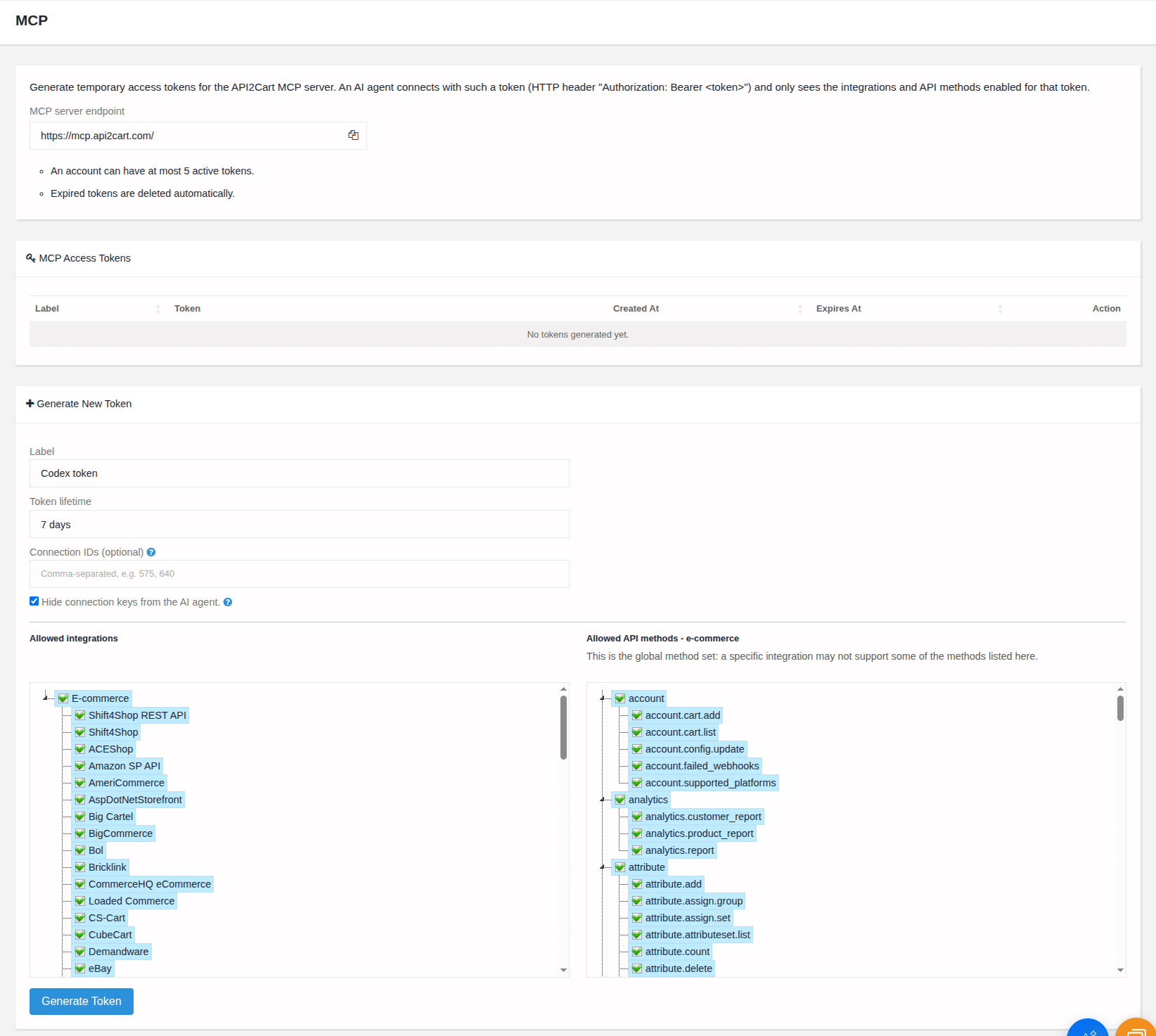
https://mcp.api2cart.com/
Protocol Version & Compatibility
The API2Cart MCP server implements the Model Context Protocol over HTTP transport. It supports current MCP client versions, including Claude Code, Cursor, VS Code, OpenAI Codex, Google Antigravity, and LM Studio. Because the MCP specification is still evolving, confirm that your client supports HTTP transport and the tools/list_changed notification before connecting.
Create an MCP Token
To connect an MCP client, create an MCP access token first.
- Log in to the API2Cart dashboard.
- Open Settings -> MCP.
- Click Generate New Token.
- Enter a token label, for example
local agentorCursor workspace. - Select the token lifetime.
- Optionally restrict the token by integrations, API methods, connection ids, or the hide connection keys option.
- Click Generate Token.
- Copy the token and endpoint.
The token is passed to the MCP client through the HTTP header:
Authorization: Bearer YOUR_MCP_TOKEN
The MCP token gives access to API2Cart MCP tools within the permissions selected during token generation.
One account can have up to 5 active MCP tokens. Expired tokens are deleted automatically. The maximum token lifetime is 180 days.
MCP Token Permissions
It is recommended to create a separate token for each AI client or workspace.
- Allowed integrations - the agent sees only selected e-commerce integrations.
- Allowed API methods - the agent can call only enabled methods.
- Connection IDs - the agent can work only with specific connections.
- Hide connection keys - the agent uses connection
idvalues and does not see rawstore_keyorconnection_keyvalues.
If a token is restricted to specific connection ids, the agent cannot add new connections because the new connection is not yet in the whitelist.
If Hide connection keys is enabled, tools that directly change raw keys through parameters such as
new_store_key or new_connection_key may be unavailable to the agent.
Connect an MCP Client
To connect an MCP client, follow these steps:
- Open Settings -> MCP.
- Find the required token in the token grid.
- Click Connect.
- Select your MCP client.
- Copy the generated command or config.
Example for Claude Code:
claude mcp add --transport http api2cart https://mcp.api2cart.com/ --header "Authorization: Bearer YOUR_MCP_TOKEN"
How the MCP Session Works
After the MCP client is connected, it receives the API2Cart guidance and available tools automatically. Users do not need to run internal tools or manage the toolset manually.
API2Cart stores the selected integration and active connection in a server-side session. When the agent switches integrations or adds a new connection, the available tools are updated automatically. Some MCP clients may need a few seconds to display the updated toolset.
If the client loses its local conversation context, the API2Cart session may remain active. The agent can continue
working with the selected connection. To restore context, provide the connection id; raw store_key
or connection_key values are not needed for an existing connection.
Work with an Existing Connection
When you ask the agent to work with a connection that already exists in API2Cart, it finds the available connections, identifies the relevant integration, and selects the connection:
find connection -> select integration -> select connection -> use platform tools
After selecting the connection, the agent uses integration-specific tools, such as product, order, category, customer, shipment, refund, or webhook tools.
If you already know the connection id, include it in your request. This lets the agent restore the
required connection without asking for raw credentials.
Choose the Right Integration
One platform can have multiple integrations. For example, WooCommerce can be available as an API-based integration and as a bridge-based integration. Magento can also have separate API-based and bridge-based options.
To choose the right integration, the agent uses these fields:
integration_id- technical identifier forselect_integrationandadd_connection.name- display name.connection_method- API-based or bridge-based.versions- supported platform versions.
API-based connections work through the platform API and require API credentials. Bridge-based connections work through API2Cart bridge or connector on the store side and may require a bridge key, FTP/SSH access, or plugin installation.
If it is unclear which option to use, ask the agent to compare the required credentials for the available integrations.
Add a New Connection
When you ask the agent to add a new connection, it identifies the available integrations, checks the required parameters, and asks only for the credentials needed by the selected platform:
find integration -> check required parameters -> add connection -> verify connection
After a successful connection, the new connection is activated automatically and the agent verifies its details. If a platform has multiple integrations, you can specify the preferred connection method, such as API-based or bridge-based.
Shared Demo Store
The shared demo store can be visible in the connection list, but it is not accessible for MCP tool calls. If the
agent selects a demo connection, API2Cart MCP returns an explicit error. For real work, connect your own store
through add_connection or use an existing non-demo connection.
Prompt Examples
Product export:
Use API2Cart MCP. Work with connection id 12345 and get the first 10 products with id, name, sku, price, and image URLs only.
Order check:
Use API2Cart MCP. Work with my selected connection. Get orders updated during the last 24 hours. Return only order id, status, total, currency, customer email, and updated time.
Adding a connection:
Use API2Cart MCP. I want to connect a Shopify store. Show the required connection parameters first. Ask only for credentials that are required by the selected integration.
Security Recommendations
- Create separate MCP tokens for different clients or projects.
- Use a short token lifetime for testing.
- Restrict the token to required integrations and methods when possible.
- Use Connection IDs restriction for production-sensitive accounts.
- Enable Hide connection keys if the AI agent should work only with connection ids.
- Do not paste MCP tokens into chats, tickets, logs, screenshots, or shared documents.
- Delete tokens that are no longer used.
Revoking an MCP Token
To revoke access immediately, open Settings -> MCP, find the token in the token grid, and delete it. Revocation takes effect immediately: any MCP client using that token loses access on its next request, and cached sessions tied to the token are invalidated.
MCP Request Logs
API2Cart creates one audit log record for each HTTP request to the MCP endpoint. The record includes the request time, called tool name, response status, and execution duration.
Account logs are available in the dashboard at Dashboard -> MCP Logs. The logs are scoped to your
account. To investigate a problem, use the request time and tool name, then check the response status and duration.
The Authorization value and credentials from add_connection are redacted before storage.
The MCP audit log does not store the response body, so it helps diagnose errors and slow requests but is not an
archive of complete API responses. Older records are removed automatically according to the log-rotation policy.
Troubleshooting
The client is connected, but no API tools are visible
Some MCP clients need a few seconds to display an updated toolset. If the tools do not appear, ask the agent to refresh the MCP session or start a new client turn.
Product or order tools are missing
Check that the correct integration is selected and that the MCP token allows the required methods. If the client was connected recently, wait a few seconds for the toolset to update.
The tool says that a method is disabled
The MCP token was generated with restrictions. Open Settings -> MCP and edit the token permissions, or create a token that allows the required method.
The agent asks for store_key or connection_key
Provide the connection id or ask the agent to find the connection in your API2Cart account. Do not
provide raw keys unless you are intentionally adding a new connection and the selected integration requires them.
The request returns too much data
Ask the agent to return only the required fields, use a smaller count, or narrow the date or filter
range.