How to connect a QuickBooks Online to API2Cart?
This guide explains how to connect a QuickBooks Online company to API2Cart. You register your own app with Intuit, authorize it against your QuickBooks company, and pass the resulting credentials to a single API2Cart API call.
You will need four values for that call: quickbooks_client_id, quickbooks_client_secret, quickbooks_company_id, and quickbooks_refresh_token. Steps 1–3 below show where each one comes from.
Step 1: Create an app in the Intuit Developer Portal
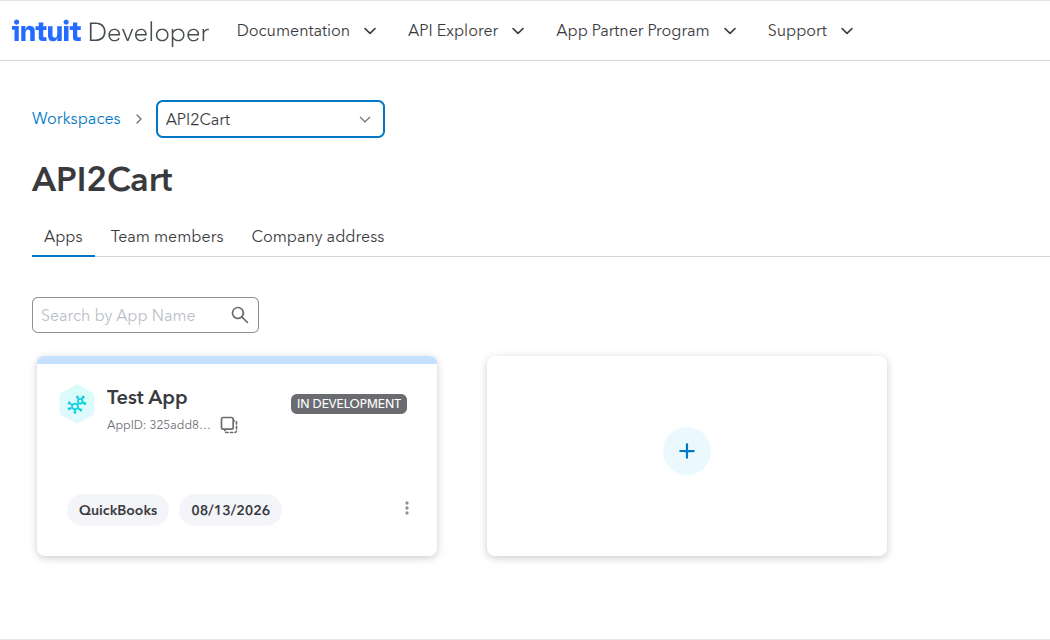
Sign in (or create a free account) at the Intuit Developer Portal. If prompted, select the correct workspace first — apps are created within a workspace, and choosing the wrong one will hide the app from the account you actually want to use. From your App Dashboard, click Create an app and choose QuickBooks Online and Payments. Give the app a recognizable name.
Step 2: Copy your Client ID and Client Secret
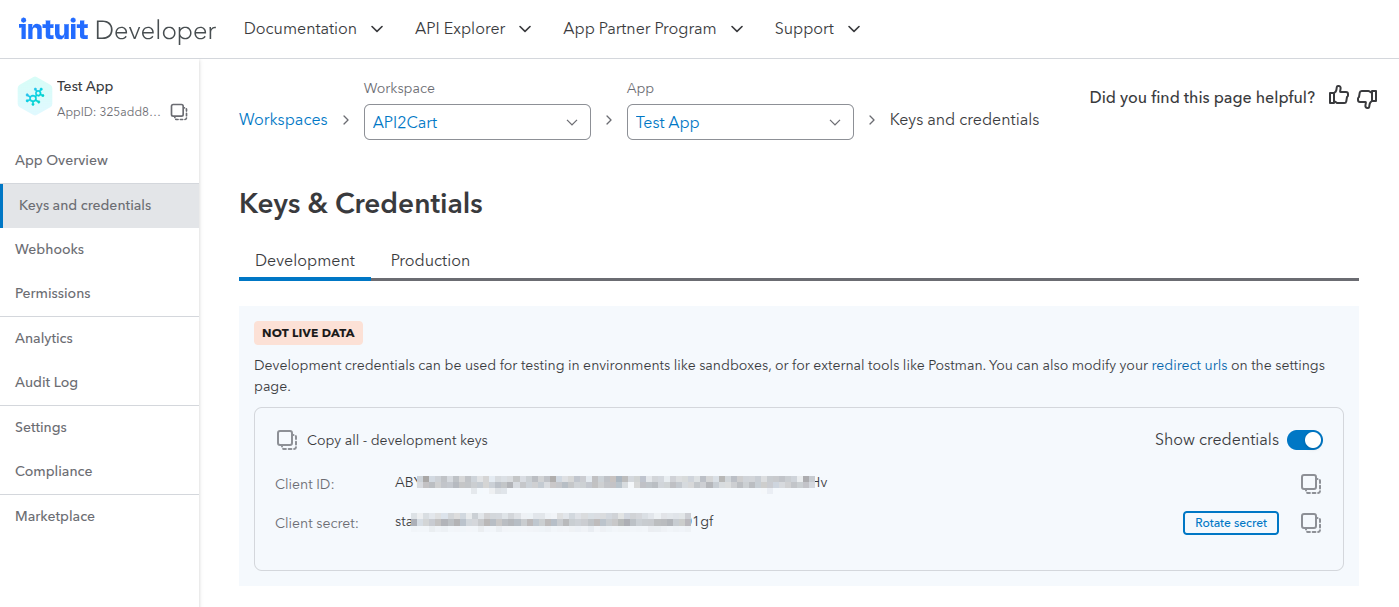
Open your new app and go to Keys & Credentials under Development Settings. A newly created app only has Development keys, which work against a QuickBooks sandbox company — useful while you're testing, as shown below. Your app dashboard also lists a set of tasks to complete before it unlocks Production credentials for a real company; once they're done, the Production tab exposes its own Client ID and Client Secret to copy.
Step 3: Authorize the app and get your Company ID and refresh token
For simplicity, this guide uses Intuit's OAuth 2.0 Playground to complete the one-time authorization: select your app, check the com.intuit.quickbooks.accounting scope box, and click Get Authorization Code. Sign in to the QuickBooks Online company you want to connect and approve access. For more details on this authorization flow, see Intuit's OAuth 2.0 setup guide.
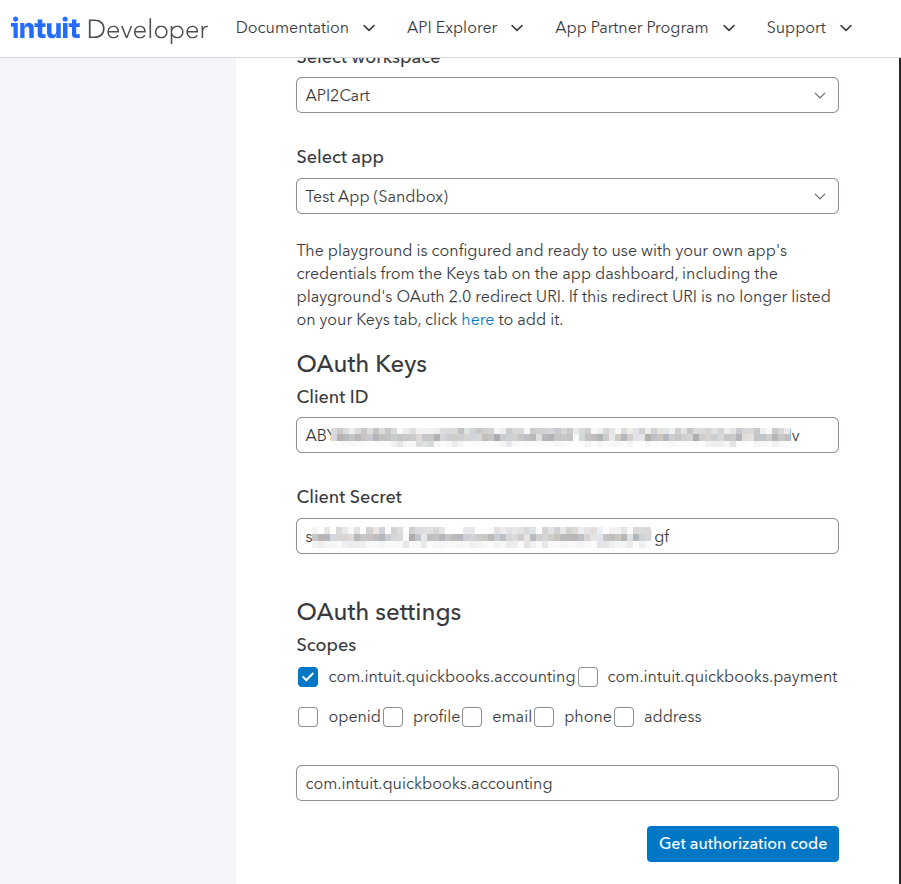
The same screen also lists optional OpenID Connect scopes — openid, profile, email, phone, address. These are unrelated to accounting data: they only return identity claims about the Intuit user who is authorizing (name, email, phone number, postal address) from Intuit's UserInfo endpoint, and openid must be selected for any of the other four to have an effect. API2Cart does not use or request this identity information, so leave these unchecked unless you separately need that data for your own purposes — only the com.intuit.quickbooks.accounting scope is required to connect QuickBooks Online to API2Cart.
Back in the Playground, click Get tokens. The token response includes a realmId, which is your QuickBooks Company ID, and a refresh_token. Copy both values — you will not need the short-lived access token, since API2Cart obtains its own automatically.
If you need to find the Company ID again later without repeating the OAuth flow, sign in to QuickBooks Online, click the Settings gear icon, and open Subscriptions and billing: the Company ID is shown at the top of that section.
Step 4: Connect QuickBooks Online to API2Cart
With these values in hand, add QuickBooks Online as a connection in API2Cart — through the dashboard, or directly via the Accounting API, using the same parameter names:
quickbooks_company_id— the Company ID (realm ID) from Step 3quickbooks_client_id— the Client ID from Step 2quickbooks_client_secret— the Client Secret from Step 2quickbooks_refresh_token— the refresh token from Step 3
Leave quickbooks_environment unset to connect a live company — it defaults to production. Set it to sandbox only when connecting a QuickBooks sandbox company for testing. If you're calling the API directly, full request formatting and authentication are documented in the Accounting API reference in your API2Cart dashboard.
A successful connection returns a connection_key, which every subsequent accounting API call for this company must include.
Reconnecting later
Once connected, API2Cart refreshes the QuickBooks access token in the background automatically, so you won't need to repeat this process for routine use. If a connection sits unused for a very long time, Intuit may expire the refresh token; if that happens, repeat Steps 3 and 4 to reconnect.
Troubleshooting
If you get the error "Some parameters are invalid! Please check your 'quickbooks_client_id' and 'quickbooks_client_secret'.", you likely copied the Development keys instead of the Production ones in Step 2. If the same error names quickbooks_refresh_token instead, the refresh token is wrong or has already expired — repeat Steps 3 and 4 with a fresh one.
QuickBooks Online does not use per-resource permission scopes the way some store platforms do — a single com.intuit.quickbooks.accounting authorization covers all accounting methods available through API2Cart. Note also that Intuit enforces its own request limits per company (500 API calls per minute, up to 10 concurrent) independently of API2Cart.