How to connect Zoho Books to API2Cart?
This guide shows you how to connect Zoho Books to API2Cart in eight clear steps. Zoho Books uses OAuth 2.0, so you register an application in the Zoho API Console and obtain a refresh token once. After that, API2Cart keeps the connection alive on its own.
Before you start, sign in to the Zoho API Console with a Zoho account. You also need access to the Zoho Books organization that you want to sync. One authorization covers every organization that the Zoho user can open, so a single connection can work with all of them.
What You Need Before You Connect Zoho Books to API2Cart
API2Cart stores four Zoho Books values. Therefore, the whole setup comes down to producing them:
zoho_books_client_id- the Client ID of your Zoho application.zoho_books_client_secret- the Client Secret of the same application.zoho_books_refresh_token- the refresh token that Zoho returns after a merchant authorizes your application.zoho_books_region- the Zoho data center that hosts the merchant's account:US,EU,IN,AU,JP,CA,CNorSA.
A Zoho access token lives for one hour. API2Cart refreshes it automatically, so you never store or rotate it yourself. The first seven steps produce the four values. After that, you connect Zoho Books to API2Cart with them.
Step 1: Register a Server-Based Application in Zoho
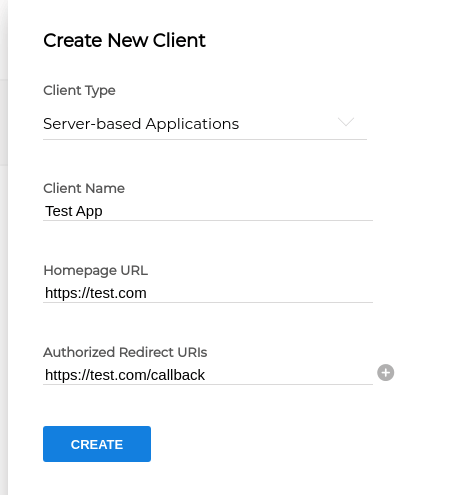
First, open the Zoho API Console and click Add Client. Zoho asks you to choose a client type. Select Server-based Applications, because this type supports the authorization code flow with refresh tokens and serves many Zoho accounts.
Then fill in three fields and click Create:
- Client Name - the name that merchants see on the consent screen.
- Homepage URL - the address of your website.
- Authorized Redirect URIs - the page that Zoho opens after a merchant approves access. It must be a page that you control, because the authorization code arrives there.
Step 2: Copy the Client ID and Client Secret
After you create the client, open its Client Secret tab. Copy the Client ID and the Client Secret. You need the Client ID for the authorization URL. Later, both values go into the token request and into the form that you use to connect Zoho Books to API2Cart.
Keep the secret private. Anyone who holds it together with a refresh token can read and change the merchant's books.
Step 3: Enable Multi-DC for Merchants in Other Regions
Zoho keeps every account in one data center: United States (.com), Europe (.eu), India (.in), Australia (.com.au), Japan (.jp), Canada (.ca), China (.com.cn) or Saudi Arabia (.sa). By default, a client works only in the data center where you registered it. Consequently, a merchant from another region cannot authorize it, and you cannot connect Zoho Books to API2Cart for that merchant.
To fix that, open the Settings tab of the client and enable Multi-DC for the data centers that your merchants use. Keep one set of credentials for all data centers whenever the console offers it. Otherwise, every region gets its own client secret, and you have to pass the secret that matches the merchant's region.
Step 4: Choose the Zoho Books OAuth Scopes
Scopes define what your application may read and write. Moreover, they decide which API2Cart methods will work after you connect Zoho Books to API2Cart. A Zoho Books scope has the form ZohoBooks.<module>.<operation>, and the operation is CREATE, READ, UPDATE, DELETE or ALL. For example, ZohoBooks.bills.ALL grants all four operations on bills.
Always include ZohoBooks.settings.READ. API2Cart reads the list of organizations to validate the connection and to pick the organization of every request, and Zoho protects that list with this scope. In addition, API2Cart checks the granted scopes before most calls. As a result, a missing scope usually returns a clear error before anything is written. The full mapping between API2Cart methods and Zoho Books scopes is in the table at the end of this guide.
If you plan to use every supported method, request this set:
ZohoBooks.settings.ALL,ZohoBooks.accountants.ALL,ZohoBooks.contacts.ALL,
ZohoBooks.bills.ALL,ZohoBooks.debitnotes.ALL,ZohoBooks.vendorpayments.ALL,
ZohoBooks.invoices.ALL,ZohoBooks.creditnotes.ALL,ZohoBooks.customerpayments.ALL,
ZohoBooks.salesorders.ALL,ZohoBooks.purchaseorders.ALL
Note that Zoho has no separate scope for offline access. Instead, you ask for the refresh token with a URL parameter in the next step.
Step 5: Build the Authorization URL
Next, assemble the URL that a merchant opens to grant access. Use the Client ID and the redirect URI from Step 1, and separate the scopes with commas:
https://accounts.zoho.com/oauth/v2/auth
  ?response_type=code
  &client_id=<CLIENT_ID>
  &scope=ZohoBooks.settings.ALL,ZohoBooks.contacts.ALL,ZohoBooks.invoices.ALL
  &redirect_uri=<REDIRECT_URI>
  &access_type=offline
  &prompt=consent
&state=123access_type=offlinetells Zoho to return a refresh token. Without it, you get only a one-hour access token.prompt=consentmakes Zoho issue a new refresh token even when the merchant has approved the application before.redirect_urimust match the redirect URI of the client character for character.stateis optional, but it protects the flow against CSRF attacks, so it is worth using.
With Multi-DC enabled, keep accounts.zoho.com in the URL, because Zoho signs the merchant in at their own data center. Without Multi-DC, replace .com with the domain of the data center where you registered the client, for example accounts.zoho.eu.
Step 6: Authorize the Application and Note the Region
Now open the authorization URL in a browser. Zoho asks the merchant to sign in and lists the permissions that match your scopes. Once the merchant clicks Accept, Zoho redirects the browser to your redirect URI:
https://example.com/callback?state=123&code=1000.6a1f...&location=eu&accounts-server=https%3A%2F%2Faccounts.zoho.euTake three values from this address:
code- the authorization code. It is single-use and expires in two minutes, so prepare the token request in advance.location- the merchant's data center. In upper case, it becomeszoho_books_region:usturns intoUS,euintoEU, and so on.accounts-server- the Zoho Accounts address of that data center. Send the token request there.
Zoho issues at most ten authorization codes per client in ten minutes. So if a test run fails several times in a row, wait a little before you try again.
Step 7: Exchange the Code for a Refresh Token
Then send a server-to-server request to the accounts-server from Step 6. In this example, the merchant's account lives in Europe:
curl -X POST https://accounts.zoho.eu/oauth/v2/token \
-d "grant_type=authorization_code" \
-d "client_id=<CLIENT_ID>" \
-d "client_secret=<CLIENT_SECRET>" \
-d "redirect_uri=<REDIRECT_URI>" \
-d "code=<CODE>"
A successful response contains access_token, refresh_token, api_domain, token_type and expires_in. Save the refresh_token, because this is the last value that you need in order to connect Zoho Books to API2Cart.
If the response has no refresh_token, the authorization URL lacked access_type=offline. Alternatively, the merchant had approved the application before and prompt=consent was missing. In both cases, repeat Steps 5 to 7 with the corrected URL.
Step 8: Connect Zoho Books to API2Cart
Finally, open the API2Cart connection form, select Zoho Books and fill in the four fields below:
zoho_books_client_id- for example1000.EXAMPLECLIENTID1234567890ABCDzoho_books_client_secret- for exampleexample0client0secret0for0zoho0books0demozoho_books_refresh_token- for example1000.example0refresh0token0value0demo.example0refresh0token0signature0zoho_books_region- for exampleEU

You can also create the connection through the API with the connection.add method:
curl -X POST https://api.api2cart.com/accounting/v1/connection.add.json \
-H "x-api-key: YOUR_API_KEY" \
-H "Content-Type: application/json" \
-d '{
  "integration_id": "ZohoBooks",
  "zoho_books_client_id": "YOUR_CLIENT_ID",
  "zoho_books_client_secret": "YOUR_CLIENT_SECRET",
  "zoho_books_refresh_token": "YOUR_REFRESH_TOKEN",
  "zoho_books_region": "EU"
}'
API2Cart checks the credentials right away: it refreshes the access token and reads the organization list. The response returns a connection_key. Pass it in the x-connection-key header of every later request.
By default, API2Cart works with the organization that Zoho marks as the default one. To work with another organization, pass its organization_id, which organization.list returns.
How API2Cart Uses Your Zoho Books API Quota
Once you connect Zoho Books to API2Cart, every unified call spends part of the organization's Zoho quota. Zoho allows 100 requests per minute per organization. The daily limit depends on the Zoho Books plan:
- Free - 1,000 requests per day.
- Standard - 2,000 requests per day.
- Professional - 5,000 requests per day.
- Premium, Elite and Ultimate - 10,000 requests per day.
On top of that, Zoho limits concurrent calls to 5 on the Free plan and to 10 on paid plans.
It is important to understand that one API2Cart request is not always one Zoho request. Under the hood, API2Cart may send several native calls to build a unified response or to validate the input data. For example:
bill.addreads the vendor and, for every line, the item, account, tax rate and location that you name. It also checks that the bill number is free, and only then creates the bill.invoice.listwithlinked_documentsinresponse_fieldsreads the payments and the applied credits of every partly paid invoice. That means two extra calls per such invoice.contact.updatewrites each added, changed or removed additional address with a separate call.- An update that changes a
statussends a separate status call next to the main write.
API2Cart reduces this overhead by caching the organization list, currencies and locations. In addition, it handles HTTP 429 for you. When Zoho asks to wait no longer than 30 seconds, API2Cart waits and then retries the call. Otherwise, it returns an error that tells you how long to wait. Even so, plan your daily volume with a margin, especially on the Free plan and for bulk imports.
Table of Required Zoho Books OAuth Scopes for API2Cart Methods
Below is the complete list of Zoho Books OAuth scopes that API2Cart methods need. Use it as a checklist before you connect Zoho Books to API2Cart. Read the table with these rules in mind:
- Scopes joined by or are alternatives, so any one of them is enough.
- Groups joined by + are cumulative, so you need at least one scope from every group.
- The third column lists scopes that a method needs only when the request contains the named property or makes the named change.
ZohoBooks.settings.READappears in every row on purpose. API2Cart runsconnection.validateautomatically before other methods, and it resolves the organization of every request. Both read the organization list.- A scope that ends in
.ALLcovers all four operations of its module.ZohoBooks.fullaccess.allcovers every module. - Zoho protects status changes with the
CREATEoperation of the module, not withUPDATE. That is why an update that changesstatusneeds theCREATEscope too. - Bill credit notes are vendor credits in Zoho Books, and their scope module is called
debitnotes.
| API2Cart Method | Required Zoho Books OAuth Scopes | Also Required When the Request Has |
|---|---|---|
connection.validate |
ZohoBooks.settings.READ |
- |
connection.add |
ZohoBooks.settings.READ |
- |
connection.update |
- | a zoho_books_* value changes: ZohoBooks.settings.READ |
connection.delete |
- | - |
organization.list |
ZohoBooks.settings.READ |
- |
account.list |
ZohoBooks.settings.READ |
- |
account.add |
ZohoBooks.settings.READ + (ZohoBooks.accountants.CREATE or ZohoBooks.settings.CREATE) |
- |
account.update |
ZohoBooks.settings.READ + (ZohoBooks.accountants.UPDATE or ZohoBooks.settings.UPDATE) |
status changes: (ZohoBooks.accountants.CREATE or ZohoBooks.settings.CREATE) |
account.delete |
ZohoBooks.settings.READ + (ZohoBooks.accountants.DELETE or ZohoBooks.settings.DELETE) |
- |
tax.rate.list |
ZohoBooks.settings.READ |
- |
item.list |
ZohoBooks.settings.READ |
- |
item.add |
ZohoBooks.settings.READ + ZohoBooks.settings.CREATE |
- |
item.update |
ZohoBooks.settings.READ + ZohoBooks.settings.UPDATE |
status changes: ZohoBooks.settings.CREATE |
item.delete |
ZohoBooks.settings.READ + ZohoBooks.settings.DELETE |
- |
contact.list |
ZohoBooks.settings.READ + ZohoBooks.contacts.READ |
- |
contact.add |
ZohoBooks.settings.READ + ZohoBooks.contacts.CREATE |
- |
contact.update |
ZohoBooks.settings.READ + ZohoBooks.contacts.READ + ZohoBooks.contacts.UPDATE |
addresses: ZohoBooks.contacts.DELETEa new additional address: ZohoBooks.contacts.CREATEstatus changes: ZohoBooks.contacts.CREATE |
contact.delete |
ZohoBooks.settings.READ + ZohoBooks.contacts.READ + ZohoBooks.contacts.DELETE |
- |
bill.list |
ZohoBooks.settings.READ + ZohoBooks.bills.READ |
- |
bill.add |
ZohoBooks.settings.READ + ZohoBooks.bills.CREATE + ZohoBooks.bills.READ + ZohoBooks.contacts.READ |
- |
bill.update |
ZohoBooks.settings.READ + ZohoBooks.bills.UPDATE + ZohoBooks.bills.READ + ZohoBooks.contacts.READ |
status changes: ZohoBooks.bills.CREATE |
bill.delete |
ZohoBooks.settings.READ + ZohoBooks.bills.READ + ZohoBooks.bills.DELETE |
- |
bill.credit_note.list |
ZohoBooks.settings.READ + ZohoBooks.debitnotes.READ |
- |
bill.credit_note.add |
ZohoBooks.settings.READ + ZohoBooks.debitnotes.CREATE + ZohoBooks.debitnotes.READ + ZohoBooks.contacts.READ |
bill_allocations: ZohoBooks.bills.READ |
bill.credit_note.update |
ZohoBooks.settings.READ + ZohoBooks.debitnotes.UPDATE + ZohoBooks.debitnotes.READ + ZohoBooks.contacts.READ |
bill_allocations: ZohoBooks.bills.READa new allocation: ZohoBooks.debitnotes.CREATEa removed allocation: ZohoBooks.debitnotes.DELETEstatus changes: ZohoBooks.debitnotes.CREATE |
bill.credit_note.delete |
ZohoBooks.settings.READ + ZohoBooks.debitnotes.READ + ZohoBooks.debitnotes.DELETE |
- |
bill.payment.list |
ZohoBooks.settings.READ + ZohoBooks.vendorpayments.READ |
- |
bill.payment.add |
ZohoBooks.settings.READ + ZohoBooks.vendorpayments.CREATE + ZohoBooks.contacts.READ |
bill_allocations: ZohoBooks.bills.READ |
bill.payment.update |
ZohoBooks.settings.READ + ZohoBooks.vendorpayments.UPDATE + ZohoBooks.vendorpayments.READ |
bill_allocations: ZohoBooks.bills.READ |
bill.payment.delete |
ZohoBooks.settings.READ + ZohoBooks.vendorpayments.READ + ZohoBooks.vendorpayments.DELETE |
- |
invoice.list |
ZohoBooks.settings.READ + ZohoBooks.invoices.READ |
- |
invoice.add |
ZohoBooks.settings.READ + ZohoBooks.invoices.CREATE + ZohoBooks.invoices.READ + ZohoBooks.contacts.READ |
- |
invoice.update |
ZohoBooks.settings.READ + ZohoBooks.invoices.UPDATE + ZohoBooks.invoices.READ + ZohoBooks.contacts.READ |
status changes: ZohoBooks.invoices.CREATE |
invoice.delete |
ZohoBooks.settings.READ + ZohoBooks.invoices.READ + ZohoBooks.invoices.DELETE |
- |
invoice.credit_note.list |
ZohoBooks.settings.READ + ZohoBooks.creditnotes.READ |
- |
invoice.credit_note.add |
ZohoBooks.settings.READ + ZohoBooks.creditnotes.CREATE + ZohoBooks.creditnotes.READ + ZohoBooks.contacts.READ |
invoice_allocations: ZohoBooks.invoices.READaddresses: ZohoBooks.creditnotes.UPDATE |
invoice.credit_note.update |
ZohoBooks.settings.READ + ZohoBooks.creditnotes.UPDATE + ZohoBooks.creditnotes.READ + ZohoBooks.contacts.READ |
invoice_allocations: ZohoBooks.invoices.READa new allocation: ZohoBooks.creditnotes.CREATEa removed allocation: ZohoBooks.creditnotes.DELETEstatus changes: ZohoBooks.creditnotes.CREATE |
invoice.credit_note.delete |
ZohoBooks.settings.READ + ZohoBooks.creditnotes.READ + ZohoBooks.creditnotes.DELETE |
- |
invoice.payment.list |
ZohoBooks.settings.READ + ZohoBooks.customerpayments.READ |
- |
invoice.payment.add |
ZohoBooks.settings.READ + ZohoBooks.customerpayments.CREATE + ZohoBooks.contacts.READ |
invoice_allocations: ZohoBooks.invoices.READ |
invoice.payment.update |
ZohoBooks.settings.READ + ZohoBooks.customerpayments.UPDATE + ZohoBooks.customerpayments.READ |
invoice_allocations: ZohoBooks.invoices.READ |
invoice.payment.delete |
ZohoBooks.settings.READ + ZohoBooks.customerpayments.READ + ZohoBooks.customerpayments.DELETE |
- |
sales_order.list |
ZohoBooks.settings.READ + ZohoBooks.salesorders.READ |
- |
sales_order.add |
ZohoBooks.settings.READ + ZohoBooks.salesorders.CREATE + ZohoBooks.contacts.READ |
number: ZohoBooks.salesorders.READaddresses: ZohoBooks.salesorders.UPDATE |
sales_order.update |
ZohoBooks.settings.READ + ZohoBooks.salesorders.UPDATE + ZohoBooks.salesorders.READ + ZohoBooks.contacts.READ |
status changes: ZohoBooks.salesorders.CREATE |
sales_order.delete |
ZohoBooks.settings.READ + ZohoBooks.salesorders.READ + ZohoBooks.salesorders.DELETE |
- |
purchase_order.list |
ZohoBooks.settings.READ + ZohoBooks.purchaseorders.READ |
- |
purchase_order.add |
ZohoBooks.settings.READ + ZohoBooks.purchaseorders.CREATE + ZohoBooks.contacts.READ |
number: ZohoBooks.purchaseorders.READaddresses: ZohoBooks.purchaseorders.UPDATE |
purchase_order.update |
ZohoBooks.settings.READ + ZohoBooks.purchaseorders.UPDATE + ZohoBooks.purchaseorders.READ + ZohoBooks.contacts.READ |
status changes: ZohoBooks.purchaseorders.CREATE |
purchase_order.delete |
ZohoBooks.settings.READ + ZohoBooks.purchaseorders.READ + ZohoBooks.purchaseorders.DELETE |
- |
The methods connection.list and connection.supported_integrations return data from API2Cart itself. For this reason, they do not call the Zoho Books API and need no scopes at all.
Troubleshooting After You Connect Zoho Books to API2Cart
Most problems appear right after you connect Zoho Books to API2Cart, and they usually come from a handful of causes. Therefore, check these first:
- "Some parameters are invalid! Please check your 'zoho_books_client_id' and 'zoho_books_client_secret', or the credentials belong to a different Zoho data center - check 'zoho_books_region'." - the pair does not match the client, or the region points to a data center where the client is not enabled. Check Multi-DC in Step 3 and the
locationvalue from Step 6. - "Some parameters are invalid! Please check your 'zoho_books_refresh_token'." - the merchant revoked access.
- "Invalid credentials specified or scope not approved by merchant. Missing required scopes: ..." - the merchant approved the application before you added a scope. Consequently, they have to authorize it again through a new authorization URL.
- "Invalid credentials specified or the required access scope is missing. Zoho Books Error: ..." - Zoho itself refused the call. Compare the granted scopes with the table above.
- "No active Zoho Books organization is available for these credentials. ..." - the application was disconnected in Zoho, the user lost access to the organization, or the trial period expired.
- "Too many requests to the Zoho Books API. ..." - the organization reached its per-minute, daily or concurrent limit. Reduce the request rate and retry later.
FAQ: How to Connect Zoho Books to API2Cart
Which Zoho Books scopes does API2Cart always need? Only ZohoBooks.settings.READ. Every other scope depends on the methods that you call.
How long is the Zoho authorization code valid? Two minutes. Moreover, you can use it only once.
Does the refresh token expire? No, it stays valid until the merchant revokes it.
Can one connection serve several Zoho Books organizations? Yes. Pass organization_id to choose the organization of a request; without it, API2Cart uses the default one.
Where do I find the value for zoho_books_region? In the location parameter that Zoho adds to the redirect URI after the merchant approves access.