How to Work With the Batch API?
The API2Cart Batch API lets you push large volumes of changes to a store in a single request instead of calling a regular method once per entity. Use the Batch API to run a bulk product import, update prices and stock on a nightly schedule, or ship a large number of orders at once.
Batch methods are asynchronous. This is the single most important thing to understand before you write any code against them: the response you get from a batch call does not tell you what happened to your data. It only tells you that your request was accepted.
How the Batch API Works
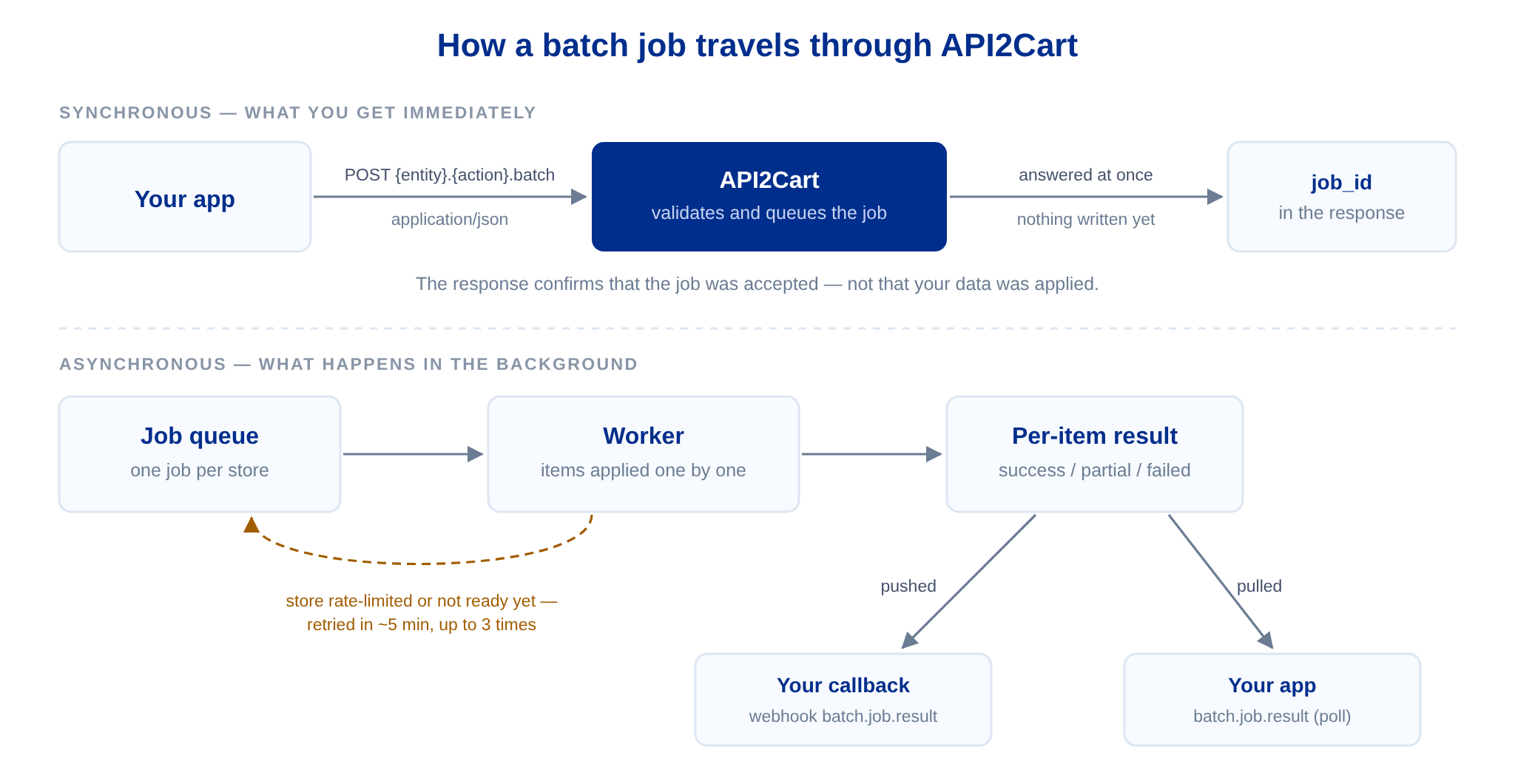
-
You send a
POSTrequest with a JSON body to a method named{entity}.{action}.batch. - API2Cart validates the body against the method schema for your store's platform. If anything is wrong, you get an error immediately and nothing is queued.
-
If the body is valid, the request is put into a queue and the response returns a
job_id. At this point nothing has been written to the store yet. - A background worker picks the job up and processes your items against the store one by one.
-
When the job finishes, the per-item result is stored, and a
batch.job.resultwebhook is delivered to your callback if you are subscribed to it. -
You read the outcome with
batch.job.result, or just consume the webhook.
The time between step 3 and step 5 is not guaranteed. It depends on how many items you sent, how fast the platform responds, and whether other jobs for the same store are already queued. Design your integration so that it never blocks waiting for a batch job to finish.
Before You Start
-
The Batch API is a plan feature. It is available during the trial period. On a
paid plan, the
Batch APIfeature must be enabled for your account, otherwise every batch call returns return_code: 5 with a message stating that your plan does not include it. Contact support to have it activated. -
Batch methods accept JSON only. Send
Content-Type: application/jsonand put the whole payload in the request body. If you submit the same data as form fields —application/x-www-form-urlencodedormultipart/form-data— the method has no JSON body to validate and answers with return_code: 109 and the message "Invalid request: 'raw_body' is either empty or not provided." This is by far the most common mistake when people start using the Batch API. -
Only the JSON response format is supported. Use the
.jsonendpoints. -
Authentication is the same as for any other method — the
x-api-keyandx-store-keyheaders.
Supported Entities and Methods
The Batch API covers the following bulk operations:
- Products —
product.add.batch,product.update.batch,product.delete.batch. - Product variants —
product.variant.add.batch,product.variant.update.batch,product.variant.delete.batch. - Categories —
category.add.batch,category.delete.batch. - Order shipments —
order.shipment.add.batch.
Plus two methods for reading what happened:
batch.job.list— the status of your recent jobs.batch.job.result— the full per-item result of one job.
Not every platform supports every batch method. Support is declared per platform, and so are the fields each entity accepts. Before you build against a method, check what the connected store actually exposes:
-
call
cart.methodsfor the store, or - open the platform's specification in the API documentation and look at the request schema of the method.
The platform specification is the authoritative source for the limits described below, for the list of fields each payload item accepts, and for field-level restrictions such as maximum lengths and allowed values. Reading it first saves you a round trip to find out that a SKU on a given platform may only be 16 characters long.
Limits
Batch API limits are declared per method and per platform. These are the ones you need to plan around:
-
Items per request. The
payloadarray must contain at least1item. The maximum is 250 items for most methods and platforms, but it is declared per method and per platform, and there are real exceptions — for example 50 on LightSpeed, 100 on eBay, 100 fororder.shipment.add.batchon several platforms, and 1000 forproduct.variant.delete.batchon Shopify. Always readmaxItemsin the specification for the platform you are integrating; exceeding it is a validation error, and nothing is queued. - Request body size. There is an upper bound on the size of the request body as well, but with the item limits above you will practically never reach it — unless your items carry very large HTML descriptions. If a batch is rejected because of its size, split it into smaller ones.
- One job per store at a time. Jobs for the same store are processed strictly one after another. Submitting ten jobs for one store in parallel will not make them finish faster. Jobs belonging to different stores are interleaved fairly, so a large import of yours never blocks another store's queue.
-
Result retention: 24 hours. Job results are removed 24 hours after the job has
been processed. After that,
batch.job.resultanswers return_code: 112 for that id. Fetch or store the result within that window. -
batch.job.listreturns up to250jobs per call (countparameter, default10).
Keep per-item payloads reasonable. A maximum-size batch where every item carries a long description, dozens of images and many attributes will take significantly longer to process and makes it much more likely that you run into the platform's own rate limits. Smaller, more frequent batches usually give you results sooner and are easier to retry.
Sending a Batch Request
curl --location 'https://api.api2cart.com/v1.1/product.add.batch.json'
--header 'x-api-key: YOUR_API_KEY'
--header 'x-store-key: YOUR_STORE_KEY'
--header 'Content-Type: application/json'
--data '{
    "payload": [
        {
            "name": "Wireless Charging Pad",
            "sku": "WCP-001",
            "description": "A slim 15 W wireless charging pad with a non-slip surface.",
            "price": 39.99,
            "quantity": 120,
            "in_stock": true,
            "images": [
                {
                    "url": "https://cdn.example.com/media/wcp-001-front.jpg",
                    "label": "Front view",
                    "position": 1
                }
            ]
        },
        {
            "name": "Braided USB-C Cable 2 m",
            "sku": "USBC-2M-BR",
            "price": 12.5,
            "quantity": 400,
            "in_stock": true
        }
    ]
}'
The response is returned immediately and contains nothing but the job identifier:
  {
    "return_code": 0,
    "return_message": "",
    "result": {
        "job_id": "1287"
    }
}
Store this job_id together with the payload you sent. Results refer to your items by
their position in the payload array, so you need the original request to map them
back to your own records.
Job-Wide Options
Besides payload, the request body can carry switches that apply to the
whole job, not to individual items. Which of them a method accepts depends on the
platform — check the request schema. The ones you will encounter are:
nested_items_update_behaviour
Most entities you send are not flat. A product carries nested collections: images, category
assignments, tags, tier prices, related products, variant options. When you update such an entity,
API2Cart has to decide what to do with the collections that already exist in the store. That is
what nested_items_update_behaviour controls.
-
replace— the default. The nested collections are completely replaced by what you send. Use this when your system is the source of truth and every request carries a full snapshot of the entity. -
merge— what you send is added to what is already in the store. Existing entries that you did not mention are kept. Use this for incremental updates, for example when you want to attach one more image to a product without re-sending the whole gallery.
Things worth knowing about it:
-
It is job-wide. The value applies to every item in the
payload. If part of your data needsreplaceand part needsmerge, split them into two jobs. -
It only affects nested collections. Scalar fields such as
name,priceorquantityare always overwritten by the value you send, regardless of this switch. -
Under
replace, omitting a collection can clear it. On several platforms, sending an update withoutimageswhilereplaceis in effect removes the existing gallery. If you only want to change the price, either sendmerge, or make sure your snapshot really is complete. -
It is only declared where both behaviours make sense — mostly on the
*.update.batchmethods. If the schema for your platform does not list it, the platform handles nested items in its own way and there is nothing to configure.
Example — add one image to two products without touching the images they already have:
  {
    "nested_items_update_behaviour": "merge",
    "payload": [
        {
            "id": "182",
            "images": [
                {
                    "url": "https://cdn.example.com/media/wcp-001-packaging.jpg",
                    "label": "Packaging",
                    "position": 4
                }
            ]
        },
        {
            "id": "186",
            "images": [
                {
                    "url": "https://cdn.example.com/media/usbc-2m-detail.jpg",
                    "label": "Connector detail",
                    "position": 2
                }
            ]
        }
    ]
}
clear_cache and reindex
On platforms where the storefront is served from a cache and a search index — Magento in
particular — product changes are not visible until the cache is flushed and the index rebuilt.
Both switches are booleans and default to false.
Reindexing is an expensive operation on the store. Do not set reindex: true on every
job of a large import; send your batches first and reindex once on the last one.
idempotency_key
Batch methods accept an idempotency_key. If the same key is used again within
15 minutes, the cached response is returned instead of creating a second job —
you get the original job_id back and the payload is not processed twice.
This is what you should use to make your retries safe. A request that times out on your side may well have been accepted on ours; retrying it with the same idempotency key cannot create a duplicate import.
How Errors Are Handled
The guiding principle is that one bad item never cancels the rest of the batch. If item 7 of 200 has an invalid SKU, the other 199 are still written to the store, and item 7 comes back with an explanation. Errors show up at three different points, and your integration should treat them differently.
1. Request-level errors, returned immediately
These happen before anything is queued, so the whole request is rejected and no job is created. Fix the request and send it again.
-
109— the body is missing, is not valid JSON, or fails schema validation: an unknown field, a wrong type, a missing required field, more items thanmaxItemsallows, a value outside the allowed range. -
5— your plan does not include the Batch API feature.
2. Item-level results, returned in the job result
Everything that happens while your items are being written to the store is reported per item, not
as an error on the job. Each entry in your payload gets its own result object:
-
id— the position of the item in your payload array, starting at0. This is how you map a result back to the record you sent. -
entity_id— the id the entity has in the store, ornullif nothing was created. -
status—success,partialorfailed. -
errors— why the item failed. -
warnings— what did not apply, on an item that was otherwise written.
The three statuses mean:
-
success— the entity was fully created, updated or deleted. -
partial— the entity exists in the store, but something secondary did not apply: an image could not be downloaded, an attribute is not supported, a value was ignored. The details are inwarnings. This is not a failure you need to retry blindly — read the warning and decide. -
failed— nothing was written for this item. The reason is inerrors.
At job level you also get items_processed (how many items the job went through) and
items_succeed (how many reached success —
partial is deliberately not counted here). If the two numbers differ, walk the
items array.
A result with mixed outcomes looks like this:
  {
    "return_code": 0,
    "return_message": "",
    "result": {
        "job_id": 1287,
        "job_name": "product.add.batch",
        "items_processed": 3,
        "items_succeed": 1,
        "items": [
            {
                "id": 0,
                "status": "failed",
                "entity_id": null,
                "errors": [
                    "Error getting remote image https://cdn.example.com/media/missing.png. Error: Not Found"
                ],
                "warnings": []
            },
            {
                "id": 1,
                "status": "success",
                "entity_id": "188",
                "errors": [],
                "warnings": []
            },
            {
                "id": 2,
                "status": "failed",
                "entity_id": null,
                "errors": [
                    "Invalid or duplicated SKU."
                ],
                "warnings": []
            }
        ]
    }
}
Retry only the positions that failed. Re-sending the whole payload after a partial
outcome will create duplicates on add methods and waste the store's rate limit on the
items that already succeeded.
3. Job-level failures
Occasionally the job as a whole cannot be processed — the store connection is gone, or an
unexpected internal problem occurred. In that case batch.job.result returns a non-zero
return_code, result is null, and the job id is repeated in
additional_fields:
  {
    "return_code": 112,
    "return_message": "Store not found.",
    "result": null,
    "additional_fields": {
        "job_id": 1287
    }
}
A job-level failure is not silent: the job is still marked as processed, so
batch.job.list reports it as processed and
batch.job.result returns the error above instead of a per-item breakdown. Since there
is no per-item breakdown in this case, some items may already have been applied to the store —
re-read the affected entities before you retry.
Why a Job May Take Longer Than Expected
Some work simply cannot be finished in one pass:
- the store's API request limit is exhausted and the platform answers with "too many requests";
- the operation is asynchronous on the platform's side — for example an Amazon feed or report that is still being generated;
- the store is temporarily unavailable.
In these situations API2Cart does not spin waiting on the store, and it does not fail your job. The job is returned to the queue together with the progress made so far, and resumed later. By default the next attempt happens after 5 minutes, and a job is rescheduled up to 3 times; platforms whose operations are genuinely long-running, such as Amazon SP-API and LightSpeed, allow more attempts.
What this means in practice:
-
While a job is waiting to be resumed,
batch.job.listreports it aspending(orin_progresswhile a worker is actively holding it). A job that has not finished after a few minutes is not necessarily stuck — on a rate-limited store it can legitimately take tens of minutes. -
Do not re-submit the same payload because a job feels slow. You will double the
work on a store that is already throttled, and on
addmethods you will create duplicates. Check the status first — and useidempotency_keyif you retry the call itself. - Because a job can be resumed, spreading a bulk import over more, smaller batches is more resilient than sending a few maximum-size ones against a store with tight rate limits.
Getting the Result
The Batch API gives you three ways to find out what happened to your data — a status list, the full per-item result, and a webhook push. In production you will normally rely on the webhook and keep the other two as a fallback.
batch.job.list
Returns your recent jobs and their current status. It accepts count,
page_cursor, ids, created_from, created_to,
processed_from, processed_to and response_fields.
curl --location 'https://api.api2cart.com/v1.1/batch.job.list.json?ids=1287&count=10'
--header 'x-api-key: YOUR_API_KEY'
--header 'x-store-key: YOUR_STORE_KEY'
  {
    "return_code": 0,
    "return_message": "",
    "pagination": {
        "previous": null,
        "next": null
    },
    "result": {
        "jobs": [
            {
                "id": "1287",
                "method": "product.add.batch",
                "status": "pending",
                "created_time": {
                    "value": "2026-09-16T09:12:47+0000",
                    "format": "Y-m-d\\TH:i:sO"
                },
                "processed_time": null
            }
        ]
    }
}
The possible values of status are:
-
pending— the job is queued, or waiting to be resumed after a deferred attempt. -
in_progress— a worker is processing it right now. -
processed— the job is finished and the result is available.
batch.job.result
Returns the full per-item result of one job.
curl --location 'https://api.api2cart.com/v1.1/batch.job.result.json?id=1287'
--header 'x-api-key: YOUR_API_KEY'
--header 'x-store-key: YOUR_STORE_KEY'
Two answers you should handle explicitly:
- return_code: 12 — "There are no result for this job yet. Please try again later." The job has not finished. This is a normal state, not an error.
- return_code: 112 — the job id is unknown, or the result has already been removed after the 24-hour retention window.
The batch.job.result webhook
Polling batch.job.result in a tight loop is the wrong way to consume batch results.
Subscribe once per store instead, and API2Cart will push the result to you as soon as the job is
done.
curl --location 'https://api.api2cart.com/v1.1/webhook.create.json'
--header 'x-api-key: YOUR_API_KEY'
--header 'x-store-key: YOUR_STORE_KEY'
--header 'Content-Type: application/json'
--data '{
    "entity": "batch.job.result",
    "action": "add",
    "callback": "https://example.com/api2cart/batch-callback",
    "label": "Batch job results"
}'
You can confirm that the webhook is available for a given store with
webhook.events.
When a job finishes, your callback receives a POST whose body is exactly what
batch.job.result would return for that job, so you can use one and the same parser for
both. The request carries the usual webhook headers, including:
X-Webhook-Entity: batch.job.resultX-Webhook-Action: addX-Webhook-Store-Id,X-Webhook-Error-Code,X-Webhook-TimestampX-Webhook-Signature— the HMAC signature of the headers and body
Your callback must return HTTP 200. Delivery is attempted up to five times; a callback
that keeps failing is eventually disabled and you are notified by email. Signature verification and
callback requirements are described in detail in
How to
Work With Webhooks.
Keep a fallback path anyway. A webhook that could not be delivered is not re-sent once the
attempts are exhausted — it is only listed by account.failed_webhooks. So if you have
not seen a result for a job_id within a reasonable time, query
batch.job.list and then batch.job.result for it.
Best Practices
-
Read the platform's specification before you build. Supported methods,
maxItems, available job-wide options and the fields of each payload item all differ between platforms. -
Subscribe to the
batch.job.resultwebhook once per store, and treat polling as a fallback rather than the main mechanism. -
Persist the
job_idtogether with the payload you sent. Results identify items by their position in the array, and you have 24 hours to collect them. - Chunk your bulk import to the method's limit, and prefer smaller batches on stores with tight rate limits.
- Do not run several jobs for one store in parallel expecting a speed-up — they are processed one after another anyway.
-
Use
idempotency_keywhen your HTTP client retries. It is the only thing that protects you from submitting the same import twice. -
Handle
partialseparately fromfailed. Apartialitem is in the store already; re-importing it is usually wrong. - Retry individual failed positions, never the whole batch.