How to connect BigCommerce to API2Cart?
This guide explains how to connect a BigCommerce store to API2Cart by creating a store-level API account, selecting the minimum required permissions, and adding the generated credentials to API2Cart.
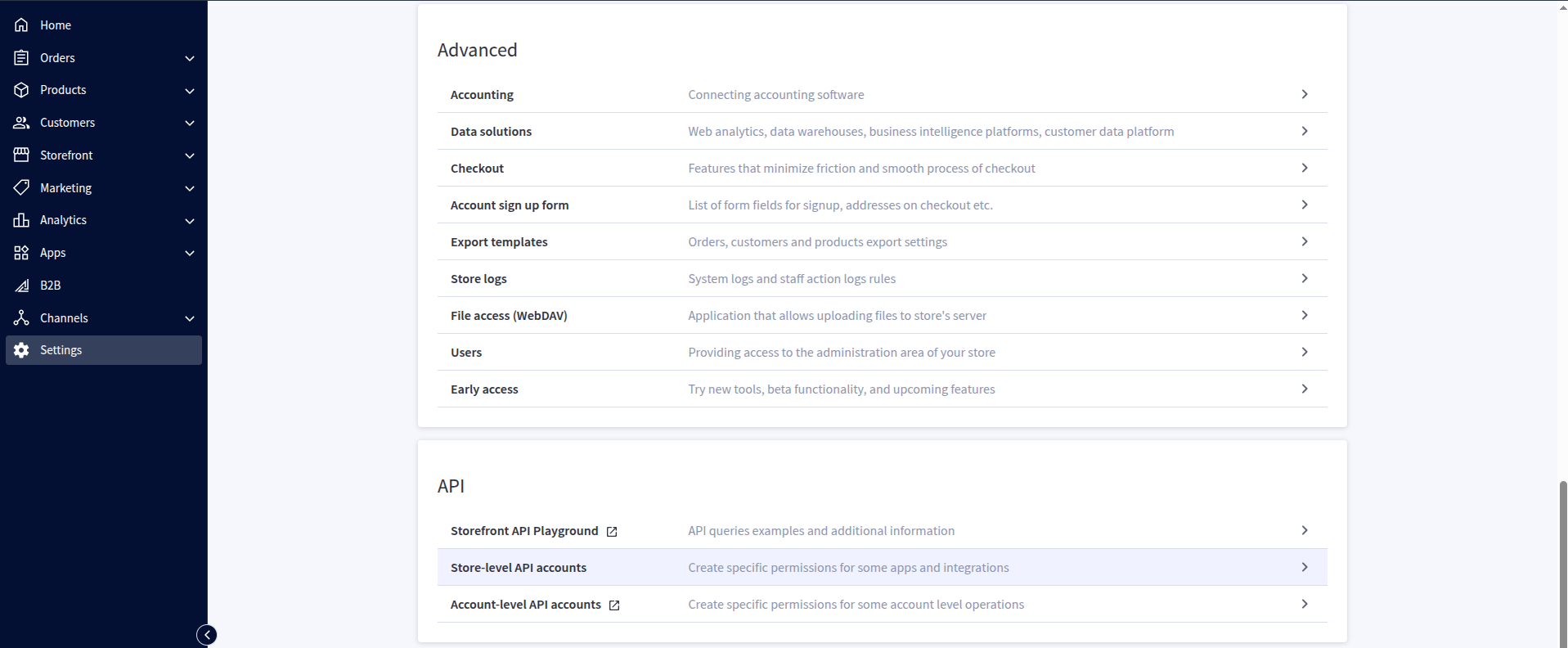
Step 1: Open Store-level API accounts
Sign in to the BigCommerce control panel. Go to Settings → Store-level API accounts.
Step 2: Create a V2/V3 API token
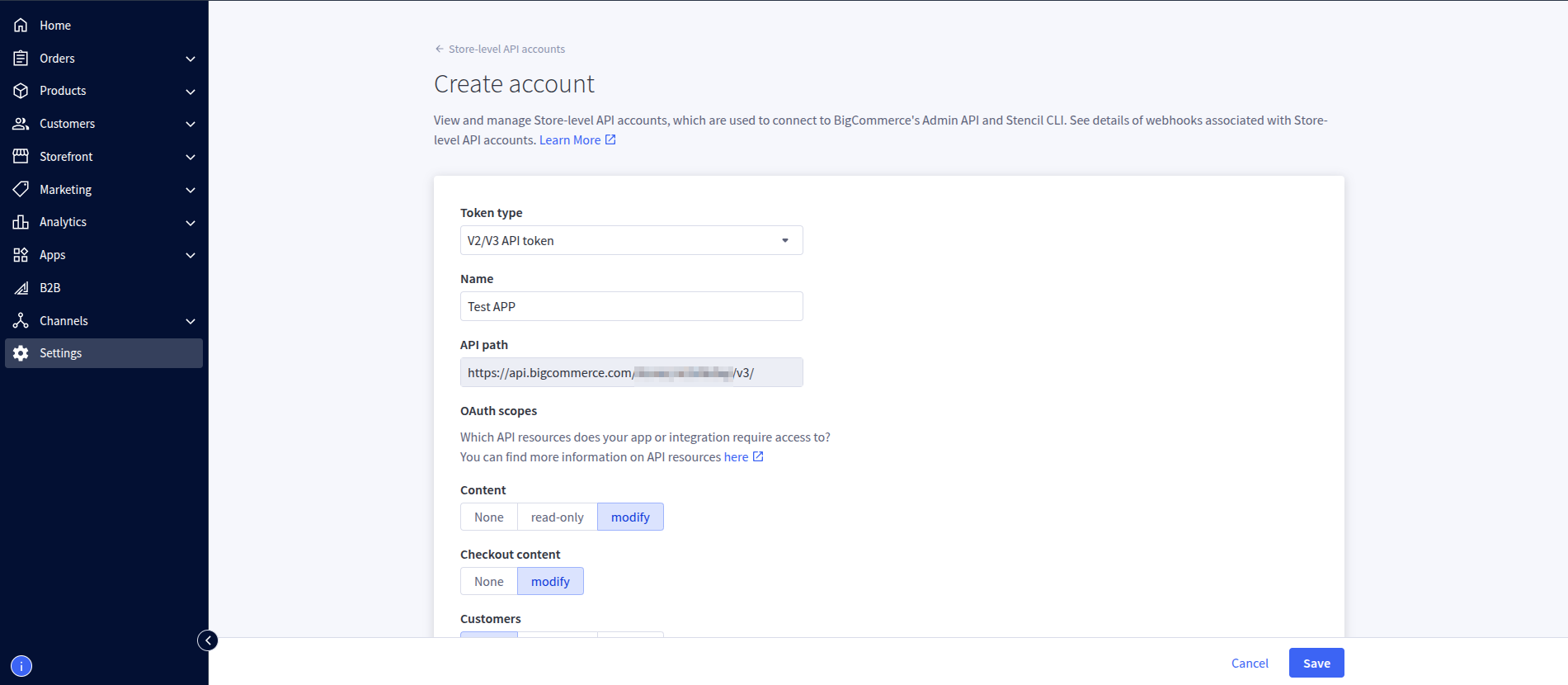
Click Create API Account, select V2/V3 API token, and enter a recognizable name, such as API2Cart Integration. BigCommerce generates the API path automatically.
Step 3: Configure API permissions
Set each permission separately. For the complete API2Cart feature set, use the following access levels:
- Products — Modify
- Orders — Modify
- Order Transactions — Modify
- Customers — Modify
- Marketing — Modify
- Content — Modify
- Carts — Modify
- Checkouts — Modify
- Store Inventory — Modify
- Information & Settings — Read-Only
- Channel Settings — Read-Only
- Channel Listings — Modify
- Sites & Routes — Read-Only
- Store Locations — Read-Only
Leave all other permissions on None. API2Cart does not require Themes, Checkout Content, Customers Login, Fulfillment Methods, or Order Fulfillment for the methods covered by this integration. BigCommerce webhooks use the default webhook scope and have no separate permission selector.
If you use only a subset of API2Cart methods, grant only the permissions listed for those methods in the table below. Modify includes read access.
Step 4: Save the credentials
Click Save. BigCommerce displays the Client ID, Client Secret, and Access Token. Save the downloaded credentials file securely: the access token is displayed only once. API2Cart requires the Client ID, Access Token, and the store hash from the API Path. The store hash is the value between /stores/ and /v3/.

Step 5: Connect BigCommerce to API2Cart
- Sign in to your API2Cart account.
- Click Add New Store and select BigCommerce.
- Enter the store URL, store hash/API path, Client ID, and Access Token.
- Click Connect. API2Cart validates the credentials and permissions.
Optional: Use the BigCommerce app OAuth flow
For an app-level integration, configure and install a BigCommerce app, then exchange its authorization code for an access token. API2Cart uses the resulting Client ID, Access Token, and context value, for example stores/{store_hash}.
If you don't already have a draft app, create one first: sign in to the BigCommerce Developer Portal, click Create an App, and enter a name for it. The new app is added as a draft, which you can then edit.
In the BigCommerce control panel, open Apps → Develop and choose Edit for your draft app.

In the Developer Portal, note the client credentials and enter your own Auth and Load callback URLs.

Open Scopes, select Set manually, and choose the required access levels.

Save the configuration and start installation. Review the requested permissions, then click Install.

When a store owner installs the app, BigCommerce sends a GET request to your public HTTPS Auth endpoint with code, context, scope, and account_uuid. Your server must exchange the code for an access_token by sending a POST request to https://login.bigcommerce.com/oauth2/token. Include client_id, client_secret, code, context, scope, grant_type set to authorization_code, and redirect_uri in the JSON body. The redirect_uri must exactly match your registered Auth URL. See the BigCommerce OAuth authentication guide.
For app-level OAuth scopes, the minimum equivalents of Step 3 are: store_v2_products, store_v2_orders, store_v2_transactions, store_v2_customers, store_v2_marketing, store_v2_content, store_cart, store_checkout, store_inventory, store_v2_information_read_only, store_channel_settings_read_only, store_channel_listings, store_sites_read_only, and store_locations_read_only. Selecting the corresponding modify scopes also works, but grants broader access.
For additional details about API accounts and scope names, see the official BigCommerce API Accounts documentation.
Required BigCommerce permissions by API2Cart method
* Optional: the method still works, but related data is omitted and API2Cart may return a warning. ** Conditional: required only when the corresponding field or parameter is requested.
| API2Cart method(s) | Minimum BigCommerce permission |
|---|---|
cart.info | Information & Settings — Read-Only; Channel Settings — Read-Only *; Channel Listings — Read-Only *; Sites & Routes — Read-Only * |
cart.coupon.count | Marketing — Read-Only |
cart.coupon.list | Marketing — Read-Only |
cart.coupon.add | Marketing — Modify |
cart.coupon.condition.add | Marketing — Modify |
cart.coupon.delete | Marketing — Modify |
cart.giftcard.list | Marketing — Read-Only |
cart.giftcard.add | Marketing — Modify |
cart.giftcard.delete | Marketing — Modify |
cart.meta_data.list | Products — Read-Only; Orders — Read-Only |
cart.meta_data.set | Products — Modify; Orders — Modify |
cart.meta_data.unset | Products — Modify; Orders — Modify |
cart.script.list | Content — Read-Only |
cart.script.add | Content — Modify |
cart.script.delete | Content — Modify |
cart.shipping_zones.list | Information & Settings — Read-Only |
basket.info | Carts — Read-Only |
category.info | Products — Read-Only |
category.count | Products — Read-Only |
category.list | Products — Read-Only |
category.find | Products — Read-Only |
category.add | Products — Modify |
category.add.batch | Products — Modify |
category.update | Products — Modify |
category.delete | Products — Modify |
category.assign | Products — Modify |
category.unassign | Products — Modify |
category.image.add | Products — Modify |
category.image.delete | Products — Modify |
customer.info | Customers — Read-Only; Orders — Read-Only ** |
customer.count | Customers — Read-Only |
customer.list | Customers — Read-Only; Orders — Read-Only ** |
customer.find | Customers — Read-Only |
customer.add | Customers — Modify |
customer.update | Customers — Modify |
customer.address.add | Customers — Modify |
customer.group.list | Customers — Read-Only |
customer.group.add | Customers — Modify |
customer.wishlist.list | Customers — Read-Only |
subscriber.list | Customers — Read-Only |
order.info | Orders — Read-Only; Customers — Read-Only *; Order Transactions — Read-Only * |
order.count | Orders — Read-Only |
order.list | Orders — Read-Only; Customers — Read-Only *; Order Transactions — Read-Only * |
order.find | Orders — Read-Only; Customers — Read-Only *; Order Transactions — Read-Only * |
order.add | Orders — Modify; Products — Read-Only |
order.update | Orders — Modify |
order.refund.add | Orders — Modify or Order Transactions — Modify |
order.shipment.list | Orders — Read-Only |
order.shipment.add | Orders — Modify |
order.shipment.add.batch | Orders — Modify |
order.shipment.update | Orders — Modify |
order.shipment.delete | Orders — Modify |
order.shipment.tracking.add | Orders — Modify |
order.status.list | Orders — Read-Only |
order.transaction.list | Order Transactions — Read-Only (hard-required) |
order.calculate | Carts — Modify; Checkouts — Modify; Products — Read-Only; Information & Settings — Read-Only; Channel Settings — Read-Only *; Channel Listings — Read-Only *; Marketing — Read-Only ** |
product.info | Products — Read-Only; Store Inventory — Read-Only * |
product.count | Products — Read-Only |
product.list | Products — Read-Only; Store Inventory — Read-Only * |
product.find | Products — Read-Only |
product.fields | Products — Read-Only |
product.add | Products — Modify; Store Inventory — Modify ** |
product.add.batch | Products — Modify; Store Inventory — Modify ** |
product.update | Products — Modify; Store Inventory — Modify ** |
product.update.batch | Products — Modify; Store Inventory — Modify ** |
product.delete | Products — Modify |
product.delete.batch | Products — Modify |
product.brand.list | Products — Read-Only |
product.manufacturer.add | Products — Modify |
product.child_item.info | Products — Read-Only; Store Inventory — Read-Only * |
product.child_item.list | Products — Read-Only; Store Inventory — Read-Only * |
product.image.add | Products — Modify |
product.image.delete | Products — Modify |
product.image.update | Products — Modify |
product.option.add | Products — Modify |
product.option.value.add | Products — Modify |
product.option.value.update | Products — Modify |
product.price.add | Products — Modify |
product.price.delete | Products — Modify |
product.variant.add | Products — Modify; Store Inventory — Modify ** |
product.variant.add.batch | Products — Modify; Store Inventory — Modify ** |
product.variant.update | Products — Modify; Store Inventory — Modify ** |
product.variant.update.batch | Products — Modify; Store Inventory — Modify ** |
product.variant.delete | Products — Modify |
product.variant.delete.batch | Products — Modify |
product.variant.image.add | Products — Modify |
product.variant.price.add | Products — Modify |
product.variant.price.delete | Products — Modify |
product.review.list | Products — Read-Only |
product.store.assign | Products — Modify; Channel Settings — Read-Only; Channel Listings — Modify |
tax.class.info | Information & Settings — Read-Only |
tax.class.list | Information & Settings — Read-Only |
webhook.list | Webhooks (default — no toggle) |
webhook.count | Webhooks (default — no toggle) |
webhook.create | Webhooks (default — no toggle) |
webhook.update | Webhooks (default — no toggle) |
webhook.delete | Webhooks (default — no toggle) |
webhook.events | Webhooks (default — no toggle) |